Never Lose Your Chrome Tabs Again: How to Resume on Startup
When a Windows update unexpectedly interrupts your work and forces a restart, you don’t have to worry about losing all your carefully organized Chrome windows and tabs.
You also don’t have to go through the tedious process of restoring the tabs manually using keyboard commands like Ctrl+Shift+T on Windows or Cmd+Shift+T on Mac—which I used to do all the time.
Instead, you can enable a simple setting in Google Chrome that tells the browser to automatically pick up right where you left off.
How to Resume Chrome Tabs on Startup
Here is how you can set it to resume on start:
- Open Google Chrome.
- Go to the browser Settings.
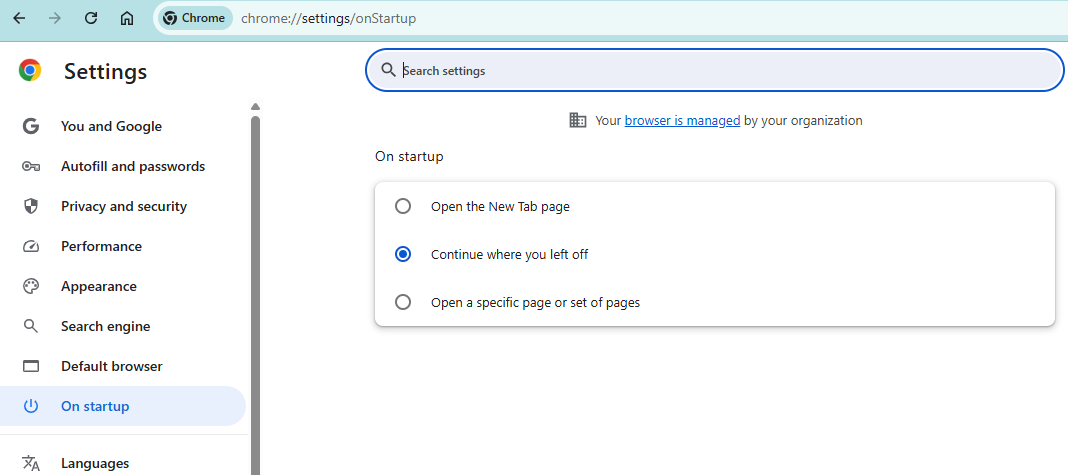
- Navigate to On startup from the left menu.
- Select the Continue where you left off option.
By default, Chrome shows “Open the New tab page”, but making this small switch makes a huge difference in productivity!
Now, regardless of whether you have to reboot for an update or simply shut down for the night, all your vital tabs will respawn completely intact when you launch Chrome again.