How To Check System Hardware Specifications for Windows Computers
Need to know your PC’s specs? Whether you’re troubleshooting, upgrading, or just curious about what’s under the hood, Windows has several built-in tools to help you find out. Here are the quickest methods.
Method 1: DirectX Diagnostic Tool (dxdiag)
The dxdiag tool is a hidden gem for checking system specs, especially for display and audio hardware.
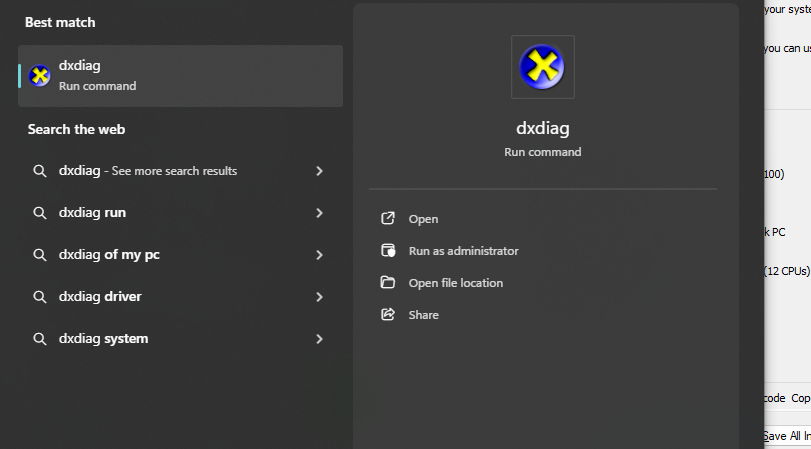
Simple way to open the tool is to search dxdiag on the windows start menu
Alternate method:
- Press
Win + Rto open the Run dialog - Type
dxdiagand press Enter - Click “Yes” if prompted to check for signed drivers
The System tab shows:
- Operating system version
- Processor (CPU) model and speed
- RAM (Memory)
- DirectX version
- System manufacturer and model
The Display tab reveals your graphics card details, including the GPU name, manufacturer, and video memory (VRAM).
Pro tip: Click “Save All Information” to export a complete report as a text file — useful for sharing specs with tech support.
Method 2: File Explorer Properties
This is the fastest way to see basic specs:
- Open File Explorer
- Right-click on This PC in the left sidebar
- Select Properties
This opens the About page showing your processor, RAM, system type (64-bit or 32-bit), and Windows edition.
Method 3: Settings App (Windows 11)
Windows 11 makes it easy through Settings:
- Press
Win + Ito open Settings - Go to System → About
Here you’ll find:
- Device name
- Processor
- Installed RAM
- Device ID and Product ID
- Windows edition and version
Method 4: System Information (msinfo32)
For the most detailed view:
- Press
Win + R - Type
msinfo32and press Enter
This tool shows everything — from BIOS version to hardware resources, components, and software environment. Expand the Components section to drill down into:
- Display adapters
- Sound devices
- Storage
- USB controllers
- Network adapters
Method 5: Command Line (for power users)
Open Command Prompt or PowerShell and try:
systeminfo
This outputs a detailed summary including OS info, hardware specs, network configuration, and uptime.
To save it to a file:
systeminfo > systemreport.txt
Quick Reference Table
| What You Need | Best Tool |
|---|---|
| Quick overview | Settings → About |
| GPU/Graphics info | dxdiag |
| Full hardware details | msinfo32 |
| Export to file | systeminfo (CMD) |
Now you know exactly where to look. No third-party software needed — Windows has you covered.